To use this section effectively, follow these steps:
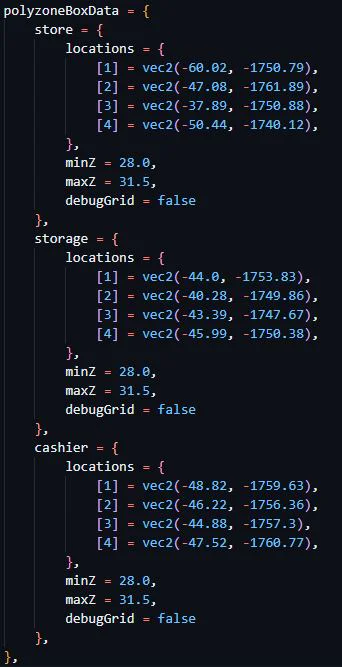
- Identify the key areas in your store that you want to define, such as the main store area, storage room, and cashier area.
- For each area, provide a unique name within the
polyzoneBoxData section, like store, storage, and cashier in the example above.
- Under each area, you’ll find a
locations section. This is where you specify the four corners of the rectangular box that represents the area. Each corner is defined using a vec2 coordinate, which consists of an X and Y value.
locations = {
[1] = vec2(X1, Y1),
[2] = vec2(X1, Y1),
[3] = vec2(X1, Y1),
[4] = vec2(X1, Y1),
[5] = vec2(X1, Y1),
[6] = vec2(X1, Y1),
…
},
4. Adjust the <mark class="mk-yellow">`minZ`</mark> and <mark class="mk-yellow">`maxZ`</mark> values to set the minimum and maximum heights for each area. This defines the vertical range of the box.
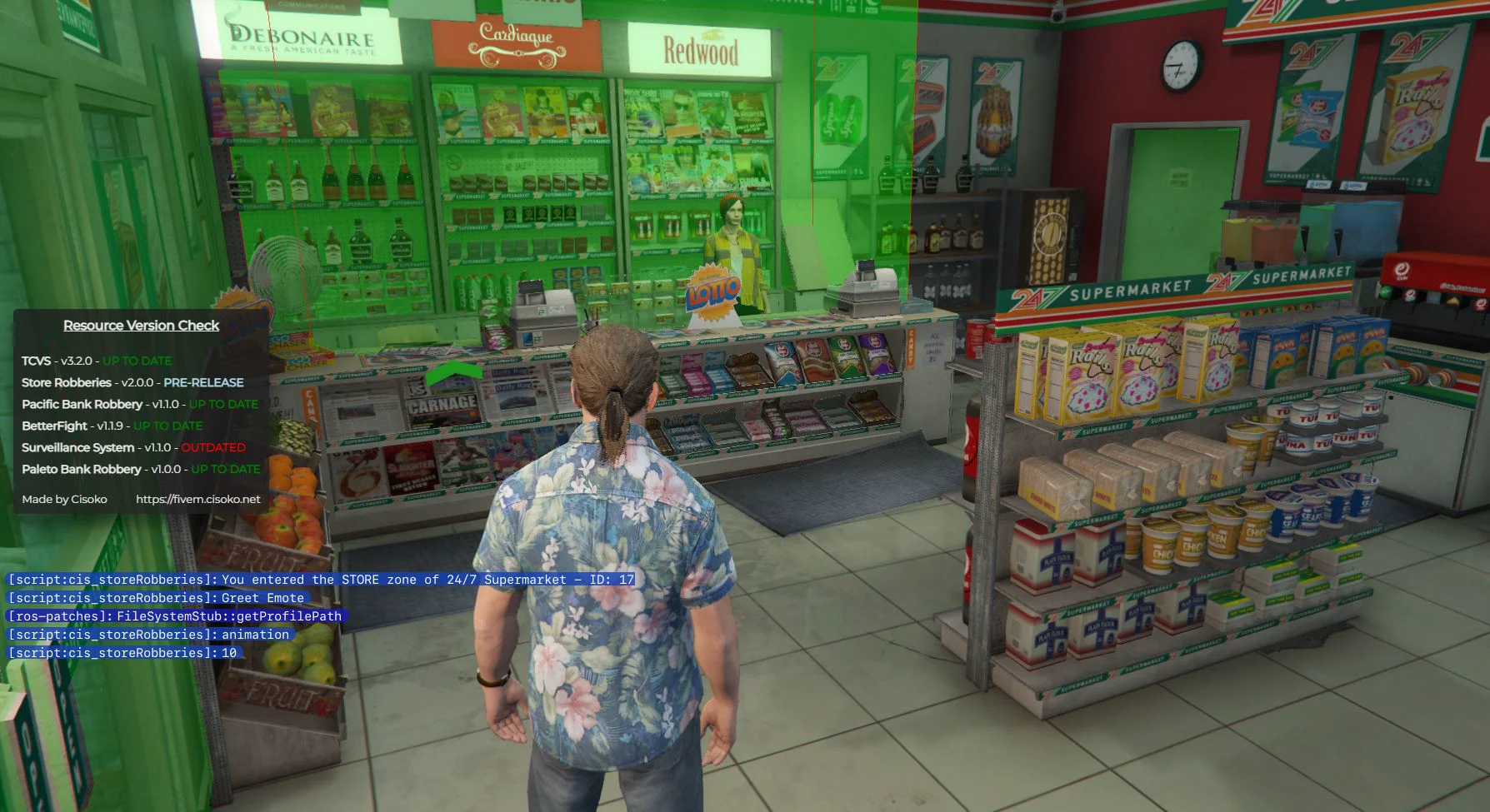
5. If you want to see a visual representation of the boxes in-game for debugging purposes, set <mark class="mk-yellow">`debugGrid`</mark> to <mark class="mk-orange">`true`</mark>. This will display a grid outlining the defined areas.
Remember to provide accurate and precise coordinates to ensure that the boxes align correctly with your store's layout. You can use in-game tools or coordinate capturing scripts to obtain the necessary `vec2` values for each corner of the areas you want to define.
By configuring the <mark class="mk-yellow">`polyzoneBoxData`</mark> section correctly, you can establish specific zones within your store, enabling features like triggering events, defining interaction areas, or setting up custom gameplay mechanics based on the player's location within these defined boxes.